
How-To
How to Compress Images for WhatsApp Without Losing Quality
WhatsApp auto-compresses every photo you send, often badly. Here's how to pre-compress images so they look good after WhatsApp's own squeeze.
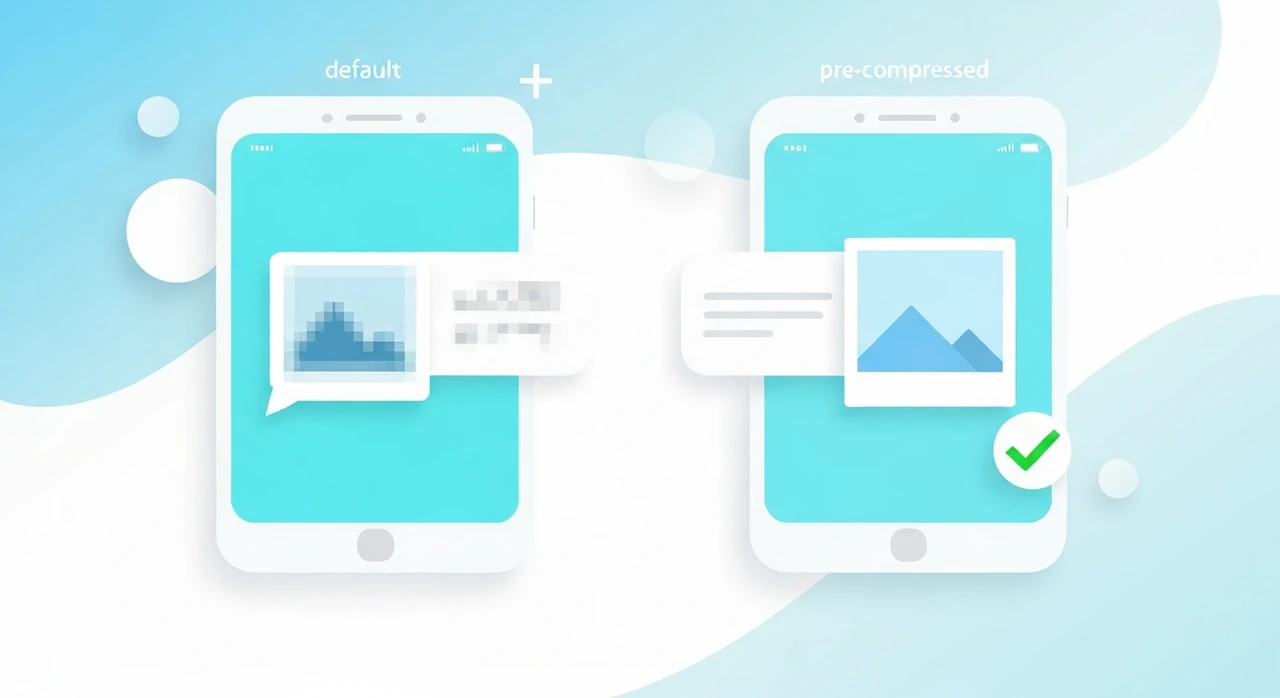
If you’ve ever sent a photo on WhatsApp and had someone reply “can you send the original?”, you’ve run into WhatsApp’s notorious auto-compression. The app shrinks every image you send, sometimes by 80% or more, and the results can range from “fine” to “looks like a smear.”
There’s a straightforward workaround, but it depends on understanding what WhatsApp actually does to your images. I deal with this constantly — sending product shots to clients over WhatsApp is a surprisingly common business channel in Mexico and much of Latin America, and the default behavior breaks a lot of photos.
What WhatsApp does to your photos
When you attach an image in a WhatsApp chat, the app applies a pipeline roughly like this:
- Resize to a maximum of 1600 px on the long side (on both iOS and Android as of 2026).
- Re-encode as JPEG at roughly quality 65–75.
- Strip EXIF metadata, including color profile in many cases.
Total reduction is typically 70–90% of the original file size. A 5 MB iPhone photo often arrives as a 400 KB JPEG with noticeable softening on text, product edges, and fine texture.
This happens regardless of the original format. PNG screenshots come through as soft JPEGs. WebP and HEIC inputs get converted. There’s no setting to disable the re-encoding on the default attachment path.
The one trick that works: send as “Document”
The single most useful WhatsApp hack is sending photos as documents instead of images. This bypasses the auto-compression entirely.
On iPhone:
- In the chat, tap the + button next to the message field.
- Choose Document (not Photo & Video).
- Tap Choose File, then browse to the photo via Browse → On My iPhone or iCloud Drive.
- Select the image and send.
On Android:
- Tap the attachment (paperclip) icon.
- Choose Document.
- Browse the file system and pick the image.
The photo sends as a file attachment with its original bytes intact. Recipients download it, and it opens normally as an image. The trade-off is convenience: it’s two extra taps, and the recipient has to tap the attachment to view it.
Use this for product shots, high-detail images, or anything where visible quality matters. Don’t use it for casual photos — the document flow is clunkier, and the recipient’s data connection will thank you for the smaller default.
The second trick: pre-compress at WhatsApp’s own ceiling
If you must use the normal image attachment flow, the way to get good-looking results is to pre-compress the image to approximately what WhatsApp would produce — but with better quality control.
Here’s the specific recipe:
- Resize the image to 1600 px on the long side (WhatsApp will do this anyway).
- Compress as JPEG at quality 85 (higher than WhatsApp’s default).
- Send the pre-compressed version.
Because WhatsApp re-encodes everything, you might assume the extra effort is wasted. It isn’t — and here’s why. WhatsApp’s encoder makes different decisions about blocks that already look JPEG-ish versus blocks with complex detail. A pre-compressed image gives it cleaner input, and the output often looks better than compressing the 5 MB original twice (once by you implicitly, once by WhatsApp).
In our own testing, pre-compressed images come through WhatsApp with noticeably less ringing around edges and less blotching in skin tones than the same original sent raw.
Using our tool for this
Our JPG compressor works perfectly for the WhatsApp workflow. On your phone:
- Open the compressor in your mobile browser.
- Drop in the photos you want to send.
- Adjust the quality slider to 85.
- Tap Download on each.
- Save them to your camera roll (long-press → Save Image on iOS, or the browser’s download menu).
- Attach as usual in WhatsApp.
Because everything runs in the browser, there’s no upload to a remote server. The photos never leave your phone.
What about video, GIFs, and voice notes?
- Video: WhatsApp compresses aggressively. For important video, send as a document the same way as photos. Be warned — video document size limits are tighter than you’d expect (100 MB per send on most tier plans).
- GIFs: WhatsApp converts to MP4 behind the scenes. The result looks fine for casual content. For brand-accurate animation, use a document attachment.
- Voice notes: These get a different codec treatment and generally come through clean.
A note on iPhone’s HEIC format
If you’re on an iPhone with Settings → Camera → Formats → High Efficiency, your photos save as HEIC. WhatsApp converts HEIC to JPEG before sending. If you’re going to pre-compress for WhatsApp anyway, you can switch iPhone to Most Compatible (JPEG) so the conversion step doesn’t happen twice. That setting has its own trade-offs though — see our HEIC vs JPEG guide.
A few more patterns worth knowing
- WhatsApp Web vs the mobile app use slightly different compression. Sending through WhatsApp Web sometimes produces a marginally cleaner result, but the difference is small.
- WhatsApp “HD photo” toggle (the “HD” button above the compose bar when you attach a photo) uses a higher-quality preset. It’s still compressed, but noticeably better than the default. Use it whenever the receiver’s connection isn’t dial-up.
- Status updates and broadcasts compress even more aggressively than direct chats. Don’t judge a pre-compression recipe by how it looks in your Status.
- Forwarding a photo usually preserves the already-compressed version without re-compressing. So if you get a photo in a chat and forward it, it doesn’t degrade further.
A realistic baseline
Here’s what I use personally for client work over WhatsApp:
- Product photos going to a buyer who will inspect them: Document attachment, original JPEG at full size.
- Product photos for a casual chat (“does this look OK?”): Pre-compressed at 1600 px, quality 85, standard image attachment.
- Progress shots or status updates: Standard image attachment, HD button if connections are good.
- Invoices, receipts, and PDF scans: Always Document.
The first rule is: if the recipient might zoom in, send as a Document. The second rule is: if they won’t, pre-compression at quality 85 is indistinguishable from WhatsApp’s default output but with less softness.
The bottom line
WhatsApp will compress every image you attach through the normal path. You can’t stop that, but you can control how bad the end result looks by giving WhatsApp cleaner input. For most people:
- Use Document attachment when quality matters.
- Pre-compress at 1600 px / quality 85 for the normal image flow.
- Turn on the HD toggle on a case-by-case basis.
To pre-compress, our JPG compressor runs entirely on your device. Drop in photos, pick quality 85, download, attach. No upload, no signup, no hidden compression on our end.
Try our free image tools
Compress and convert images right in your browser. No upload, no signup, no limits.