
Photography
How to Convert RAW to JPG (and Why Most People Should)
RAW files are powerful and huge. JPG is universal and small. Here's when to shoot RAW, how to export to JPG cleanly, and the settings that matter.
I shoot in RAW on weekends. Almost nobody I send photos to cares. That’s not a complaint, just the reality of photographic output in 2026.
This article is the answer I give to friends who’ve gotten into photography, figured out they should shoot
RAW, and now have a hard drive full of .ARW, .NEF, .CR3, or
.DNG files they can’t do much with. Converting to JPG is the bridge between a photographer’s
workflow and everyone else’s.
What RAW actually is
A RAW file is an unprocessed capture from your camera’s sensor. Every brand has its own format (Sony ARW, Canon CR3, Nikon NEF, Fuji RAF, Panasonic RW2) and Adobe’s generic DNG container can wrap most of them.
What’s inside:
- Per-pixel sensor values at full bit depth (typically 12 or 14 bits per channel).
- No white balance applied. No color grading. No sharpening.
- All the metadata from the shot, plus vendor-specific auxiliary data.
What it is not:
- A finished image anyone can look at on a normal device.
- Something that renders “correctly” in a phone gallery or Windows Photos.
RAW is source material. JPG is output. Treating RAW as output causes most of the frustration people have with it.
Why RAW files are so big
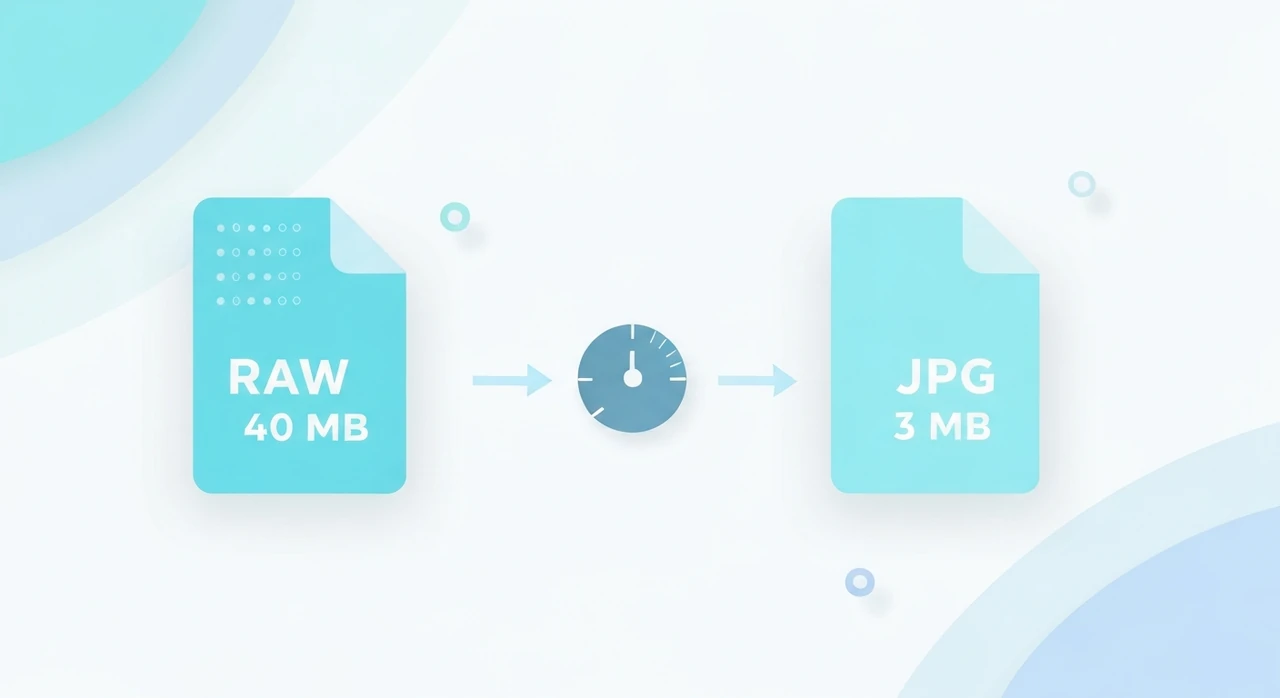
A typical 24 MP mirrorless camera produces RAW files around 35–50 MB each. A 45 MP or 60 MP sensor produces RAW files 75–120 MB. Compare to a JPG out of the same camera at around 8–12 MB.
The extra data buys you:
- Latitude in exposure. You can recover 2–3 stops of shadow detail or 1–2 stops of highlights. JPGs clip at ~1 stop each direction.
- Full color depth. 12–14 bits per channel vs JPG’s 8. This matters when you push saturation, color-grade heavily, or work with subtle gradients like skies.
- No encoder artifacts. You haven’t committed to any lossy compression yet.
If you’re color grading or printing, this flexibility is genuinely valuable. If you’re posting a photo straight to Instagram of your lunch, it’s irrelevant.
When to keep RAW
Keep RAW when:
- The shot is important and you might re-edit it later.
- You’re going to push exposure or color by a noticeable amount.
- You’re printing.
- You’re archiving. RAW is the photographer’s equivalent of keeping the negatives.
Keep RAW and also export JPG when you want to share while preserving the master. This is the workflow I use.
When to skip straight to JPG
Skip RAW (shoot JPG directly or delete the RAW after exporting) when:
- You’re shooting a high volume and storage matters — wedding photographers, event shooters, sports.
- You’re confident in your exposure and white balance out of camera.
- You don’t do any color grading.
- You’re happy with the camera’s JPG pipeline.
Modern camera JPG engines are excellent. Fuji’s film simulations, Canon’s “Picture Styles,” Sony’s “Creative Look” — all produce output better than most people would create by grading RAWs themselves. If you’re not grading, the RAW buys you nothing.
How to convert: four paths
Adobe Lightroom (Classic or Cloud)
My daily driver. Import the RAW, make your adjustments (exposure, white balance, shadows, highlights, crop), then Export with:
- File format: JPEG
- Quality: 85
- Color space: sRGB
- Resize: long edge 2400 px for web, or longer for print/archive
- Metadata: “Copyright & Contact Info Only” for privacy, or full metadata for archival
Lightroom’s raw processing is the industry standard. If you’re serious, it’s worth the subscription.
Capture One
Preferred by some pros, especially for Sony and Fuji shooters. Similar workflow to Lightroom with a different color science.
Apple Photos (macOS) or Apple Preview
If you’re on a Mac and not grading heavily, Apple’s built-in RAW support is fine. Photos can import most RAW formats, let you do basic adjustments, and export to JPG. Preview can open a single RAW and do File → Export as JPEG.
Not as powerful as Lightroom but free and zero-setup.
Darktable (free, open-source)
If you want professional RAW processing without paying Adobe, Darktable is the serious option. Learning curve is steeper than Lightroom, and the UI is polarizing, but the output quality is top-tier. Available on Mac, Windows, and Linux.
Camera manufacturer software
Sony Imaging Edge, Canon DPP, Nikon NX Studio, Fuji X RAW Studio — all free. They handle their own brand’s RAWs with the most accurate color profiles (the vendors know their sensors best). But the UI is usually rough and the feature set limited. I use these for batch conversions when I want the factory JPG look without loading Lightroom.
Key export settings
Whichever tool you use, these are the settings that matter:
- Format: JPEG.
- Quality: 85 for web delivery, 95+ for print or archive.
- Resize: match the destination. 1600–2400 px long edge for web, full resolution for print.
- Color space: sRGB for web, Adobe RGB for print workflows (but only if your print shop expects it).
- Sharpening: “Screen” preset for web delivery. Off for print (your print shop sharpens).
- Strip EXIF: personal preference. See our EXIF privacy guide.
For a typical workflow where you want to upload a handful of shots to Instagram, I’d do quality 85, 2048 px long edge, sRGB, screen sharpening. That’s the universal “looks good, loads fast” recipe.
Batch conversion
When you come back from a trip with 400 shots, you don’t want to export one by one. Every major RAW processor has batch export:
- Lightroom: select photos in grid → Export → settings apply to all.
- Darktable: select → export with template.
- Apple Photos: select → File → Export.
Run it once, walk away for a coffee, come back to 400 JPGs.
If you want to do light web compression on the batch afterwards, run the folder through our JPG compressor at quality 80 to squeeze another 20–30% off the file sizes for upload.
What about HEIC?
Newer iPhones and some Android phones shoot in HEIC (a modern efficient format). If your “RAW” is actually iPhone HEIC, that’s not truly RAW — it’s already processed, just in a more efficient container. Converting HEIC to JPG is a simpler operation; see our HEIC to JPG guide.
Real iPhone RAW (DNG, captured with the Camera app’s RAW toggle) is different and can be processed in Lightroom like any other RAW.
Common mistakes
A few things I’ve had to explain more than once:
- Exporting at quality 100. You’re wasting 2–3× the file size for invisible improvements. Stay at 85.
- Exporting at full sensor resolution for web. A 45 MP photo at 8200×5500 displayed in a 1200-pixel container is mostly waste.
- Forgetting to convert color space. Shipping Adobe RGB JPGs to the web makes them look dull in most browsers. Always sRGB for web.
- Not applying sharpening. Raw converts come out slightly soft; the “Screen” sharpening preset is designed to compensate for viewing on a monitor.
- Keeping only JPGs and deleting the RAWs. If the shot matters, keep the RAW. Storage is cheap; re-shoots are not.
My actual workflow
Sony A7 IV on weekends. Rough flow:
- Shoot RAW+JPG (a setting on the camera that saves both).
- Review JPGs on the camera’s screen during the shoot. Delete obvious throwaways.
- Back home, import both RAW and JPG into Lightroom.
- Cull further (another ~30% deleted).
- For keepers, grade the RAW in Lightroom. Use the JPG as a reference for “what the camera thought.”
- Export final JPGs at 2400 px, quality 85, sRGB, screen sharpening, stripped metadata.
- Archive the RAWs to an external SSD. Upload JPGs to wherever they’re going.
That’s it. Takes an hour or two for a weekend’s shooting and produces both archival masters and clean shareable JPGs.
Converting RAW to JPG isn’t complicated once you accept what each format is for. RAW is the negative. JPG is the print. Keep the negatives, share the prints.
Try our free image tools
Compress and convert images right in your browser. No upload, no signup, no limits.