
Fundamentals
sRGB vs Display P3 vs Adobe RGB: Color Spaces for Web Designers
Color spaces are the reason your photos look great in Lightroom and wash out on the web. Here's how each one works and which to pick.
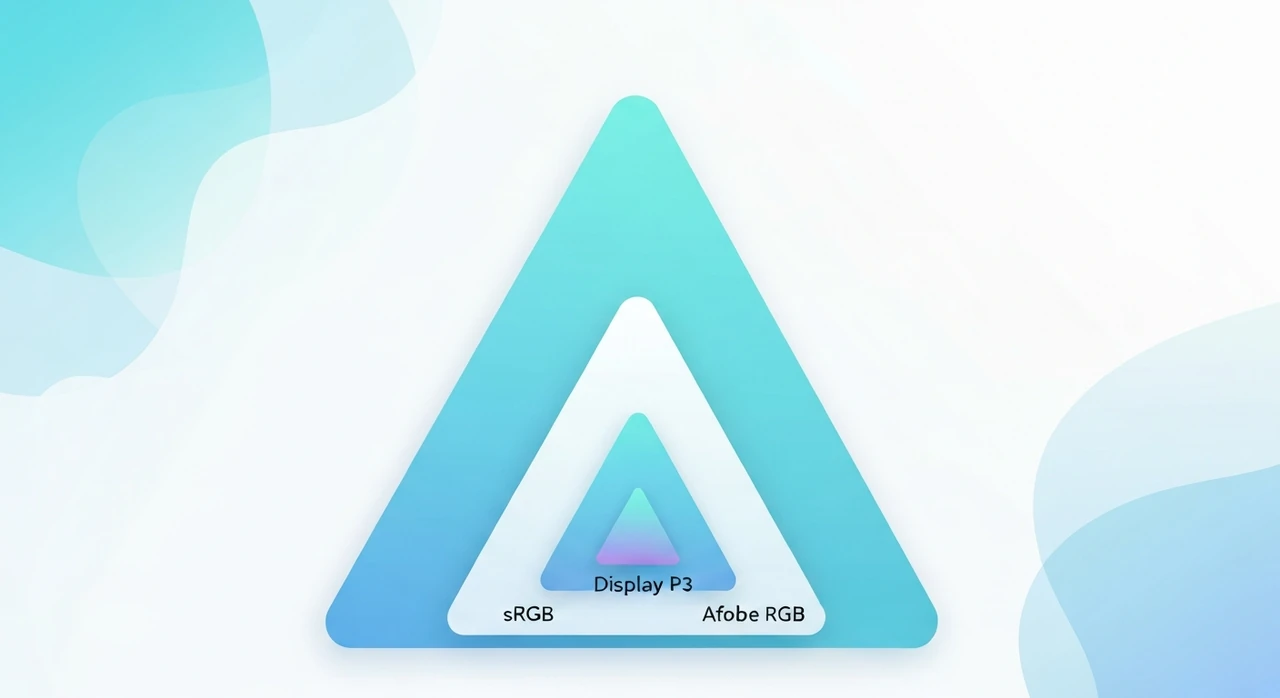
If you’ve ever exported a photo that looked perfect in your editor and then looked washed out on the web, you’ve hit a color space problem. The pixels didn’t change. What changed is the agreement between the file and the browser about what those RGB numbers mean.
Color spaces are one of those topics where a little understanding saves a lot of frustration. This article is aimed at web designers and content creators who export images from Lightroom, Affinity Photo, or Figma and publish them to websites. If you’ve ever fought with mysterious color shifts, this is the territory we’re in.
What a color space actually is
An RGB pixel is three numbers: R=128, G=64, B=32, for example. Those numbers by themselves don’t specify a color. They specify a position in a color space. Without knowing which color space, you don’t know what color the pixel represents.
A color space (or color profile, or gamut) defines:
- The chromaticity of each primary color — where “pure red,” “pure green,” and “pure blue” sit on the visible spectrum.
- The white point — what combination of R, G, B equals “white.”
- The gamma curve — how the numeric values map to perceived brightness.
Two images with the same pixel values but different color spaces will display different colors. This is why “save as sRGB before uploading to the web” is standard advice.
The three color spaces you’ll encounter
sRGB (Standard RGB, 1996)
- The web’s default color space, standardized by HP and Microsoft.
- Designed to match the capabilities of a CRT monitor circa 1996, which means its gamut is narrower than modern displays can actually show.
- Covers about 72% of the visible color spectrum (as mapped by the Pointer’s gamut reference).
- Every browser assumes images without an explicit color profile are in sRGB.
If you’re publishing to the web and you don’t know what color space to choose, the answer is sRGB. Every mainstream browser, CMS, email client, and social platform expects sRGB. Anything else risks being misinterpreted on some fraction of your audience’s devices.
Display P3 (Apple, 2015)
- Introduced with the iMac 2015 and iPhone 7.
- About 25% wider gamut than sRGB, especially in the red and green regions.
-
Now supported by most Apple devices, many modern Android phones, and all modern browsers via the
color-profileand CSScolor()function. - Photos taken on a recent iPhone in its default mode are Display P3.
Display P3 is the de facto standard for the Apple ecosystem and increasingly for higher-end Android. For content that will primarily be viewed on modern hardware, P3 makes red and green noticeably more saturated than sRGB.
Adobe RGB (1998)
- Designed for print workflows.
- Wider gamut than sRGB, especially in the cyan-green region.
- Widely used by photographers who print professionally.
- Not web-friendly. Most browsers still render Adobe RGB as if it were sRGB, causing the washed-out look.
Adobe RGB is a trap for web publishing. If you shoot in Adobe RGB and publish the file directly, most viewers will see dull colors. The fix is always: convert to sRGB before exporting.
Other color spaces you may see
- ProPhoto RGB: even wider than Adobe RGB, used for master files that will be converted for output. Never publish directly.
- Rec.709: the broadcast television standard. Similar to sRGB but with slightly different gamma.
- Rec.2020: ultra-wide gamut for modern HDR video. Emerging for HDR still images.
- DCI-P3: digital cinema’s gamut, very close to Apple’s Display P3.
How color space mismatches happen
The most common trap:
- Photographer shoots in Adobe RGB (Lightroom’s default if you’re not paying attention).
- Photographer exports without re-specifying sRGB.
- Image is uploaded to a website.
- Most browsers ignore or mishandle the Adobe RGB profile and render the pixels as if they were sRGB.
- The image looks dull compared to what the photographer saw in Lightroom.
The fix is to export specifically to sRGB. In Lightroom: File → Export → File Settings → Color Space: sRGB. In Photoshop: File → Export → Export As → Convert to sRGB.
How browsers handle color profiles
With an embedded profile
When a JPEG or PNG file carries an embedded color profile (an ICC profile), modern browsers read it and convert the colors for accurate display on the user’s monitor.
Without an embedded profile
Without a profile, browsers assume sRGB. Period. This is the safe default to design around.
CSS and wider gamuts
CSS now supports explicit color spaces via the
color() function. You can specify:
background-color: color(display-p3 1 0 0); /* pure P3 red */
Browsers that understand Display P3 will render the color in its full P3 range. Browsers that don’t fall
back to sRGB. In practice, if you’re writing CSS colors, stick with rgb() or
hex() unless you’re specifically designing for P3 audiences.
Practical recommendations
For general web publishing
Always convert to sRGB before export. This is the one rule that prevents 95% of color problems:
- Lightroom / Lightroom Classic: File → Export → File Settings → Color Space: sRGB.
- Photoshop: Edit → Convert to Profile → Destination: sRGB IEC61966-2.1.
- Affinity Photo: Export → Profile → sRGB.
- Capture One: Process Recipe → ICC Profile → sRGB.
Embed the sRGB profile when exporting. This adds ~3 KB to the file but guarantees consistent rendering.
For modern iPhone-first audiences
If your primary audience is iPhone users and you want the richer P3 colors to come through, export in Display P3 instead of sRGB. Apple’s Safari and modern Chrome render P3 correctly on compatible screens. Users on sRGB screens will see a sensible fallback.
The catch: some older browsers and image viewers still render P3 files as sRGB, producing colors that look
duller than the master. For a mixed audience, export two versions and serve the right one via
<picture> with media="(color-gamut: p3)" hints. Most sites don’t
bother.
For print or master archives
Keep your masters in ProPhoto RGB or Adobe RGB. Convert to sRGB or P3 only at export time.
For email
Always sRGB with embedded profile. Email clients are even less color-aware than browsers. Adobe RGB or P3 in email almost always results in visible color shifts somewhere in your audience.
For e-commerce product photos
sRGB with embedded profile is the safe default. Users shopping on mobile get consistent color across brands. P3 is tempting for fashion or beauty where rich reds matter, but the inconsistency across devices usually outweighs the benefit.
How to check what color space a file is in
macOS
- Right-click an image → Get Info. The info panel often shows the color profile.
- Open in Preview → Tools → Show Inspector → (i) More Info → ColorSync Profile.
Windows
- Right-click → Properties → Details → scroll to Color Space.
-
Or use a tool like ExifTool:
exiftool -ICC_Profile:all photo.jpg.
Command line
exiftool -ColorSpace -ProfileDescription photo.jpg
Browser DevTools
Chrome DevTools’s Rendering pane has a “Emulate CSS media feature color-gamut” option that lets you preview how a site looks when the browser thinks the display is sRGB vs P3.
Common mistakes
- Exporting from Lightroom without setting the color space, then wondering why everything looks dull.
- Running a batch convert that strips color profiles entirely. Without a profile, the image is interpreted as sRGB, which is fine only if it was actually in sRGB.
- Uploading ProPhoto-tagged files to WordPress and expecting the colors to survive. WordPress’s image handling varies by version; older versions sometimes corrupt color profiles.
- Uploading Display P3 photos from iPhone to older Android Gallery apps. The Android app may render them as sRGB, producing a noticeable color shift.
- Using P3 color values in CSS without fallbacks. Older browsers get confused.
Compression and color profiles
When we compress images in our JPG compressor, PNG compressor, or PNG-to-WebP converter, we preserve color profiles by default. Stripping color profiles can save 3–10 KB per file but risks color shifts on non-sRGB source images. We think that trade-off rarely makes sense for the web.
If you’re compressing files you know to be plain sRGB and want the extra savings, tools like
cjpeg -outfile out.jpg -copy none in.jpg will strip profiles explicitly.
The bottom line
For general web publishing: convert to sRGB, embed the profile, export. That one rule solves most color problems.
If you’re designing for iPhone-first or high-end Apple audiences and want richer reds and greens, Display P3 is a valid upgrade. Beyond that, Adobe RGB and ProPhoto belong in your masters, not on the web.
Our image tools preserve color profiles during compression so your sRGB or P3 export stays accurate through the optimization step.
Try our free image tools
Compress and convert images right in your browser. No upload, no signup, no limits.