
Format Guide
When to Use SVG (and When You Really Shouldn't)
SVG is the best web image format for some things and a terrible choice for others. Here's the decision tree, with real examples of each case.
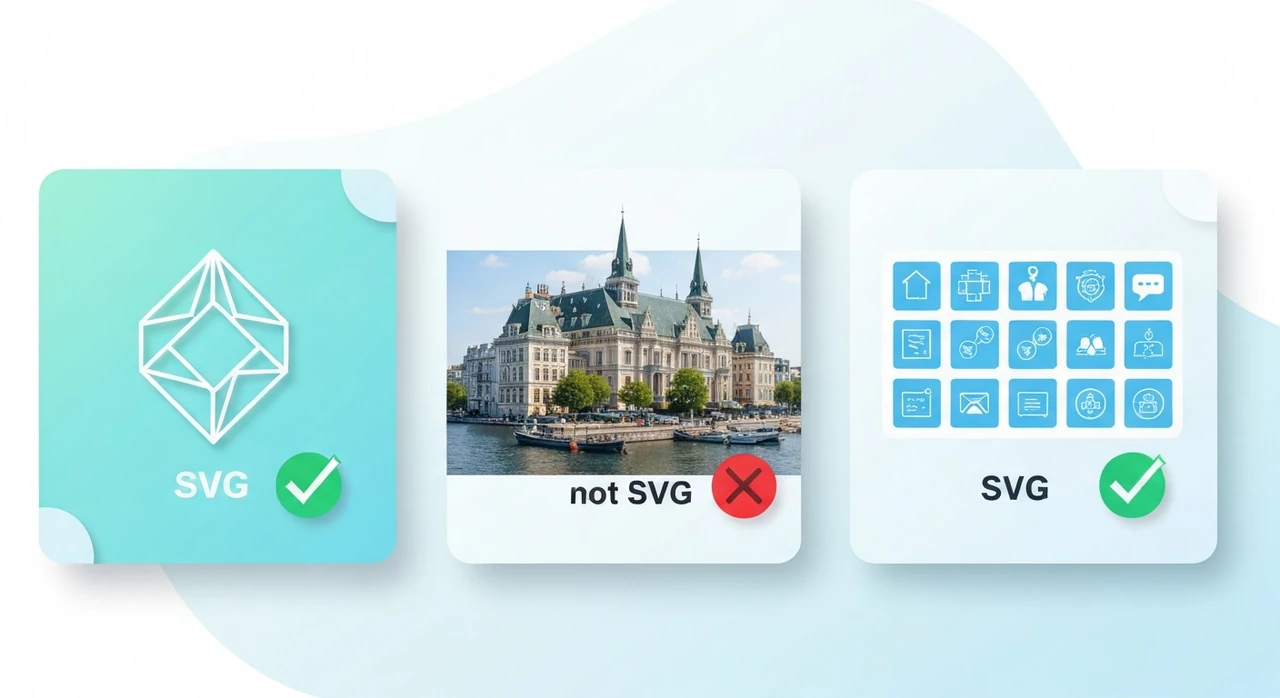
A colleague asked me last year whether she should convert her company’s logo from PNG to SVG. The answer was yes, obviously. Then she asked whether she should convert the hero photograph on the homepage to SVG too. The answer to that was no, and the reason is the whole reason this article exists.
SVG isn’t a universally better image format. It’s a format for vector graphics specifically, and on the content types it’s designed for, nothing else comes close. On the content it wasn’t designed for — photographs, most illustrations with soft gradients, anything with photographic texture — SVG is strictly worse than any raster format. Sometimes comically so.
This is the decision tree I use when a question about SVG comes up.
What SVG actually is
SVG (Scalable Vector Graphics) stores images as mathematical descriptions instead of pixel grids. Instead of saying “this pixel is red, the next pixel is red, the one after that is blue…” an SVG file says “draw a rectangle here, then a circle there, fill them with these colors.”
The file is XML. Anyone can open an SVG in a text editor and read it. That property alone — the file being readable, editable, and scriptable — is why SVG works so well for graphics pipelines.
Practical consequences:
- Scales infinitely. The math re-renders at any size. A 16×16 favicon and a 2000×2000 poster can use the exact same SVG file.
- Tiny file sizes for flat graphics. A 3-color logo might be 2 KB as SVG, 15 KB as PNG-8, 80 KB as PNG-24.
- Styleable with CSS. Change colors, animate paths, react to hover — all from CSS.
- Scriptable with JavaScript. Build interactive charts and diagrams.
-
Terrible for photographs. The file size blows up because every pixel becomes an SVG
<rect>or similar. I’ve seen a “photo as SVG” run 50 MB when the source JPG was 300 KB.
Use SVG for
Logos and brand marks
Every brand mark should be SVG. If your design team hands you a PNG logo, ask for the source file (Illustrator, Affinity Designer, Figma) and export to SVG.
Why: you want the logo sharp at every size — from favicon to full-page hero to print collateral. Raster logos get blurry at large sizes and blocky at small ones. SVGs stay crisp.
UI icons
Hamburger menus, close buttons, search magnifiers, chevrons. All SVG.
Most modern icon libraries (Feather Icons, Heroicons, Phosphor, Lucide) ship SVG files. Inline them directly
into your HTML or load via <img>. Don’t use PNG icon fonts in 2026 — they’re a historical
workaround for the era when SVG support was patchy.
Illustrations with hard edges and solid colors
Flat-style illustrations. Infographics with geometric shapes. Diagrams with rectangles and arrows.
The hero illustration on this page is an SVG. It scales, it’s small, it stays crisp on any display.
Charts and data visualizations
Bar charts, line charts, scatter plots rendered from your data. Libraries like D3, Chart.js, and Recharts all output SVG. The charts are accessible (screen readers can walk the DOM), styleable, and print-friendly.
Patterns and repeating textures
Decorative backgrounds, geometric patterns, technical drawings. SVG handles repetition via
<pattern> elements very efficiently.
Line art and technical drawings
Architectural diagrams, mechanical schematics, wiring diagrams. All vector-friendly.
Don’t use SVG for
Photographs
Converting a photo to SVG usually means tracing the image into thousands of polygon paths. The output is huge, slow to render, and still looks like a crude approximation of the original. Use JPG, WebP, or AVIF.
If a vendor or automated tool offers to “convert your photo to SVG,” decline.
Illustrations with soft gradients or painterly texture
Digital paintings, watercolor illustrations, anything with photographic depth — not SVG. Even if you could express them as SVG gradients, the file sizes balloon.
Any raster-sourced graphic with fine detail
If the source is a raster image with per-pixel detail, keeping it raster is almost always the right call. SVG only makes sense when the source is vector.
Animated content
SVG can animate, but for actual video-style content (say, a 10-second animation of multiple overlapping
elements), animated SVG is inefficient compared to a <video> element with a small H.264
or AV1 file. Keep SVG animation for simple UI micro-interactions.
How to decide: a three-question test
When I’m not sure whether something should be SVG, I ask three questions:
- Is the source vector? If the image was originally drawn in Illustrator, Figma, or a similar vector tool, SVG is almost always right.
- Does it have fewer than 10 distinct colors? If yes, SVG is likely a good fit. If it has thousands of subtle colors (photograph-like), SVG is wrong.
- Does it have hard edges or soft gradients? Hard edges favor SVG. Soft gradients favor raster.
Two or three yeses → SVG. Zero or one → use a raster format.
SVG file size, in practice
A quick reference from my own projects:
- Typical UI icon (hamburger, chevron, close): 200–500 bytes.
- Moderate logo: 1–4 KB.
- Complex illustration (many paths, some gradients): 10–30 KB.
- Simple infographic: 5–15 KB.
- Badly-authored illustration (too many nodes, no optimization): 100 KB+.
That last one matters. SVGs from design tools are often bloated with editor metadata, unused definitions,
and redundant paths. Run them through SVGO (npx svgo input.svg -o output.svg) before shipping.
Typical savings: 30–70%.
Security considerations
SVG is XML. XML can contain scripts and embedded references to external resources. This means:
- Don’t accept user-uploaded SVGs without sanitization. An attacker can put JavaScript inside an SVG. Tools like DOMPurify or the “Safe SVG” WordPress plugin strip scripts before rendering.
- Inline SVGs are subject to your page’s CSP. If you serve strict CSP headers, inline SVG works fine, but embedded scripts in SVG files get blocked (which is usually what you want).
-
Avoid
<use href>to external SVG URLs. It works but triggers extra network requests and opens up CORS considerations. Inline the SVG or reference a same-origin file.
For a marketing site with your own curated SVGs, these concerns are theoretical. For a site that accepts user uploads, treat SVG the way you’d treat user-uploaded HTML: sanitize before rendering.
How to use SVG in HTML
Four common patterns:
Inline
<svg viewBox="0 0 24 24" width="24" height="24" fill="currentColor">
  <path d="M5 12l5 5L20 7"/>
</svg>
Best for icons you want to style with CSS. The SVG is part of the DOM; you can change its color via
currentColor and the surrounding CSS.
<img> tag
<img src="logo.svg" alt="Example Logo" width="200" height="50">
Best for logos and illustrations you don’t need to style dynamically. The SVG is cached like any other image resource.
CSS background-image
.icon { background-image: url('icon.svg'); }
Best for decorative backgrounds. Note: you can’t change the SVG’s colors via CSS when used as
background-image.
<object> or <iframe> (rarely needed)
Lets you access the SVG’s internal DOM from a separate document context. I’ve almost never needed this; inline SVG covers the use cases.
Optimization workflow
For a production site with many SVGs:
- Export from your design tool.
- Run through SVGO with default settings.
-
If using inline SVG, strip the
xmlnsdeclaration if it’s not needed (SVGO can do this). - Consider combining small icons into an SVG sprite sheet if you have many of them.
-
Serve with appropriate caching (
Cache-Control: public, max-age=31536000, immutablefor versioned filenames).
The short version
Use SVG for logos, icons, flat illustrations, charts, and anything that’s vector-native. Don’t use SVG for photographs or anything with painterly texture.
When you’re not sure, ask the three-question test. When the test says SVG, also run the file through SVGO before shipping to save 30–70% on size.
The rest is mechanical.
Try our free image tools
Compress and convert images right in your browser. No upload, no signup, no limits.