
Fundamentals
DPI vs PPI vs Pixels: What They Mean for Web and Print
DPI doesn't matter on screens. PPI does. Here's the plain-English version of why, plus what settings to use for web, print, and everything in between.
A designer asked me a few months back why her “300 DPI” images were still looking blurry on a client’s website. I had to explain, carefully, that DPI had nothing to do with how the image rendered in the browser. The confusion isn’t her fault — design software, Stack Overflow answers, and a hundred old tutorials keep telling people that “web images should be 72 DPI,” and the phrase has become load-bearing even though it means nothing for digital display.
Let me walk through what these terms actually mean, where they matter, and where they don’t.
The three terms
Pixels are the atomic unit of a digital image. A pixel has one color. An image is a grid of pixels. A 1920×1080 image is 1920 pixels wide and 1080 pixels tall. That’s it. Pixels have no inherent physical size.
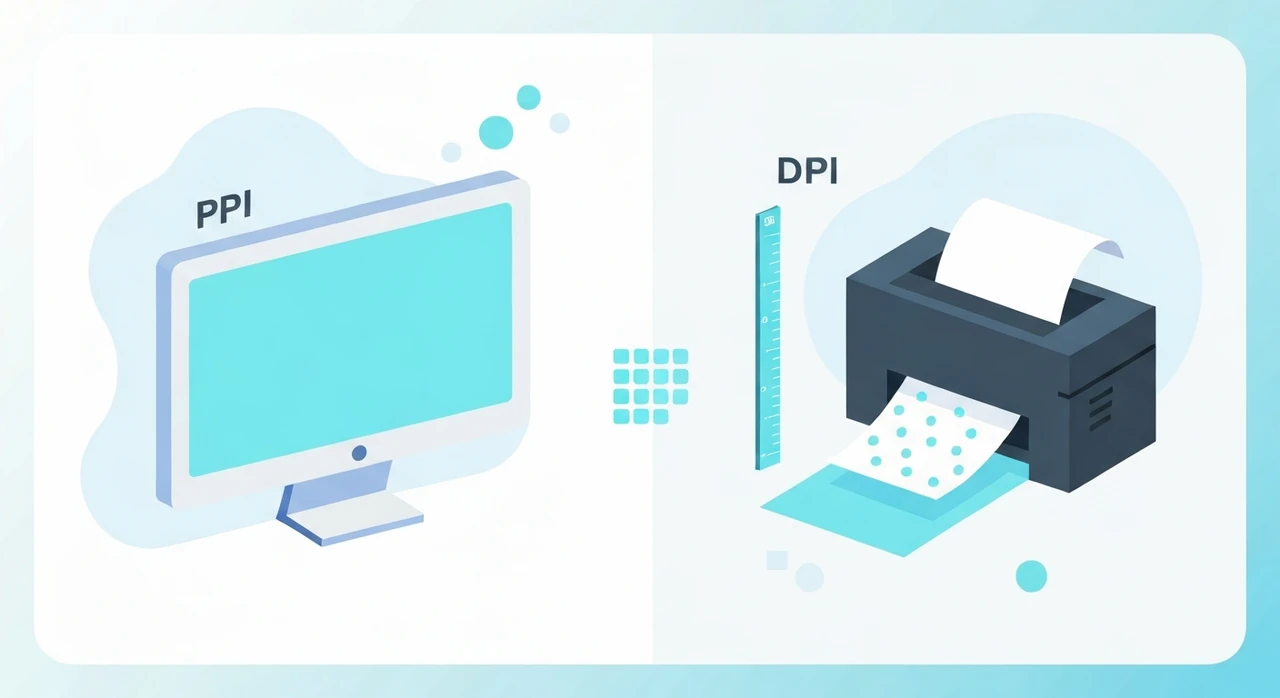
PPI stands for Pixels Per Inch. It’s how densely pixels are packed on a display. A 4K 27-inch monitor has about 163 PPI. An iPhone 15 Pro has about 460 PPI. PPI is a property of the physical device, not the image file.
DPI stands for Dots Per Inch. It’s how densely dots of ink are placed on paper by a printer. A home inkjet runs 300–1200 DPI. A commercial offset press can do 2400+. DPI is a property of the printer, not the image file.
That last sentence is where the confusion starts. Because image files do store a number labeled “DPI” (or “PPI”) in their metadata. But that number doesn’t change the image; it’s just a hint for print software.
The magic “300 DPI for print, 72 DPI for web” myth
The “72 DPI for web” number traces back to the original Apple Macintosh displays in the 1980s, which actually were roughly 72 PPI. Design software (notably Adobe products) enshrined 72 as the default DPI for digital output, and the convention stuck.
In 2026, this is historical baggage. A modern web browser:
- Loads an image file as a grid of pixels.
- Renders those pixels into the DOM based on CSS width/height, not the image’s metadata DPI.
- Displays them on whatever physical device the user has.
The image’s embedded DPI value is never read during display. You could save an image as “1 DPI” or “3000 DPI” and it would look identical on the web. The only thing that matters is the pixel dimensions.
When DPI actually matters
DPI (technically, the DPI field in the file metadata, sometimes called “resolution”) matters in two contexts:
1. Print output
When you send an image to a printer, the printer needs to know how big to make the physical output. If you have a 3000×2000 pixel image and you want to print it at “300 DPI,” the resulting print is 10 inches × 6.67 inches. If you want 150 DPI, it becomes 20 × 13.3 inches.
The relationship is: print size = pixel dimensions ÷ target DPI.
Most print shops expect 300 DPI for high-quality prints. So a postcard printed at 4×6 inches needs at least 1200×1800 pixels (4 × 300 by 6 × 300).
2. Design software
Tools like Photoshop, Illustrator, and Affinity Publisher use the DPI value when you specify a canvas in inches or centimeters. If you create a “letter-size document at 300 DPI,” the tool creates a 2550×3300 pixel canvas (8.5 × 300 by 11 × 300).
Once you export to a file for web delivery, the DPI value becomes irrelevant. Only the pixel dimensions matter.
Why Retina is the modern confusion
Apple’s Retina branding — and the equivalent high-density displays on Android, Windows, and Chromebook — are where “PPI” re-enters the picture for web developers.
A Retina display has roughly 2× the pixel density of a standard display. An iPhone doesn’t render a CSS
width: 100px as 100 physical pixels; it renders it as 200. This is done automatically by the
browser; the CSS pixel is a logical unit, not a physical pixel.
For web images, this means:
- A “400×300” CSS image on a Retina display requires an 800×600 source to look sharp.
- Shipping the 400×600 source shows a soft, slightly blurry image.
- Shipping the 800×600 source at “width: 400px” in CSS looks perfectly crisp.
This is why responsive image sizing matters. See our
responsive images guide
for the full srcset / <picture> mechanics.
Note that the Retina effect is nothing to do with DPI metadata. A 800×600 image displays correctly on Retina regardless of whether the file says “72 DPI” or “300 DPI” in its metadata. The browser doesn’t read that field.
Practical guidance
For web
- Ignore the DPI field. Don’t worry about it. It has no effect.
- Size images by pixel dimensions. For a 400-pixel display on a Retina screen, ship an 800-pixel source.
-
Use
srcsetto let the browser pick the right density automatically.
For print
- Target 300 DPI for professional prints. Calculate pixels as (print dimension) × 300.
- 150 DPI is acceptable for large-format (banners, posters viewed from a distance).
- Below 150 DPI starts looking soft in typical viewing conditions.
- Save the DPI value in the file when exporting for print. Most print shops’ prepress checks flag files with “72 DPI” metadata even if the pixel count is sufficient. Just set DPI to 300 in the export dialog to avoid the conversation.
For presentation (projectors, TV)
- Think in pixels, not DPI. A 1080p projector is 1920×1080 regardless of screen size.
- 2× density is overkill for most projector use. Unless you’re in a high-end conference setting with 4K projectors, 1920-pixel-wide content is sufficient.
The math, worked through
A real example from a client last year. They were printing a 16×20 inch wall poster.
- Target: 16 × 20 inches at 300 DPI = 4800 × 6000 pixels.
- Source they sent: 2000 × 2500 pixels. Not enough for 300 DPI.
-
Options:
- Accept 150 DPI output (~13 × 16 inch print at full quality). Rejected — they wanted 16×20.
- Upscale with an AI tool (Topaz Gigapixel) to ~4000 × 5000 pixels. Result was usable for wall viewing distance.
- Re-shoot at higher resolution. Not possible (event photo).
We went with option 2. The print looked fine at normal viewing distance. Would it have looked better at a true 4800×6000 source? Yes. Was the upscaled version acceptable? Also yes.
The common tools
Photoshop
Image → Image Size shows pixel dimensions and the DPI field. Uncheck “Resample” when you want
to change DPI without resampling pixels (this effectively just changes what size the image claims to be for
print). Check “Resample” when you want to actually change pixel count.
Lightroom (Export dialog)
The Export dialog has a “Resolution” field (DPI). Set to 300 for print, or leave blank/72 for web (it doesn’t matter for web).
GIMP
Image → Scale Image handles pixels. Image → Print Size handles DPI for print. GIMP
separates these more explicitly than Adobe’s tools, which is actually clearer.
Our resizer
We don’t expose a DPI field because — as should now be obvious — it’s not relevant for the web-delivery use case this tool is built for. Pick pixel dimensions and go.
The summary
- DPI is a property of printers. PPI is a property of displays. Pixels are a property of the image file.
- Image metadata has a “DPI” field, but it’s only a hint for print software. Browsers ignore it.
- For web delivery, only pixel dimensions matter. Ship enough pixels for Retina (2× the CSS display size is a safe default).
- For print, aim for 300 DPI at the final physical size.
- “72 DPI for web” is a myth from the 1980s that refuses to die. You can safely ignore it.
If you take one thing from this article: when someone asks about DPI for a web image, the right answer is “it doesn’t matter — what’s the pixel size?”
Try our free image tools
Compress and convert images right in your browser. No upload, no signup, no limits.