
Fundamentals
Progressive JPEG: The Old Trick That Still Improves Perceived Speed
Progressive JPEG existed before the web was fast. Surprisingly, in 2026 it still delivers measurable perceived-performance wins. Here's why and when to use it.
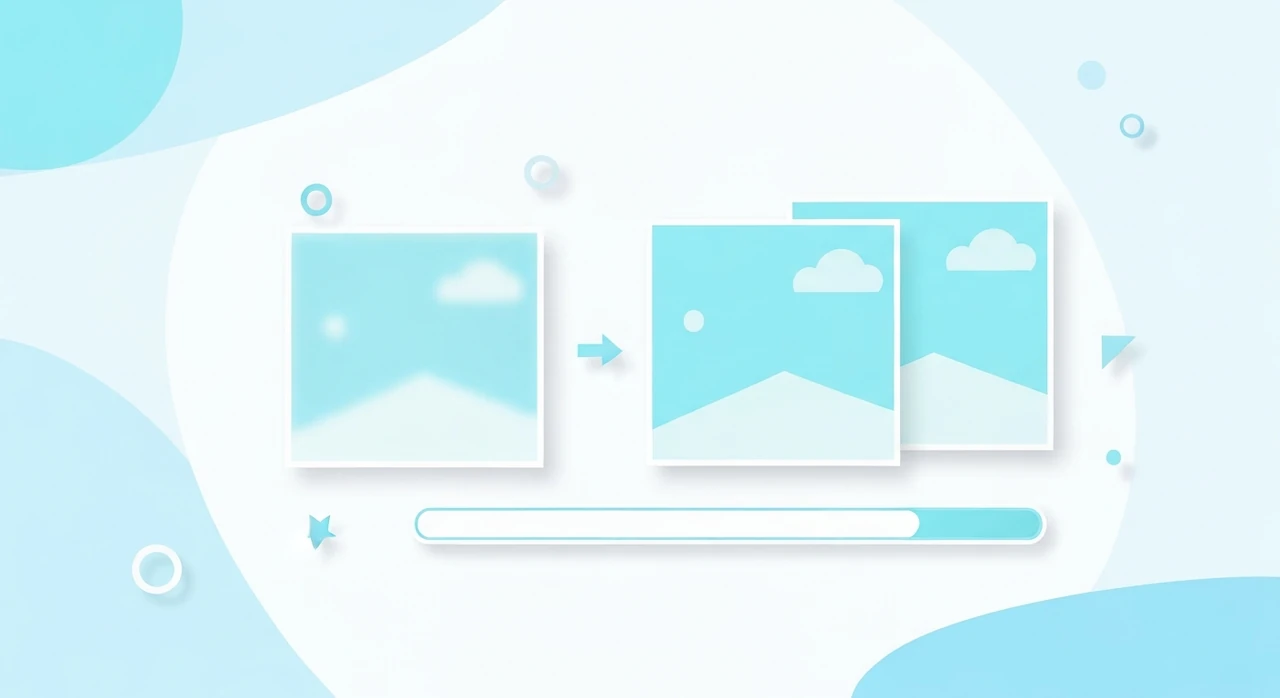
Progressive JPEG is one of those technologies that’s been quietly useful for 30 years and still doesn’t get the attention it deserves. It’s an alternative encoding mode for the JPEG format that changes how images download over the wire. Instead of loading top-to-bottom like a curtain dropping, progressive JPEGs appear as a blurry version that sharpens in passes.
You’ve seen this behavior a thousand times without naming it. It’s that effect where an image goes from “fuzzy” to “clear” over the course of half a second on a slow connection. That’s a progressive JPEG doing its thing.
In 2026 with fiber and 5G, the rendering difference between baseline and progressive JPEG is often invisible. But the perceived performance difference can still be measurable, and there are specific cases where progressive is still the right call.
How progressive JPEG actually works
Standard JPEG (called “baseline” JPEG) encodes the image in strict top-to-bottom order. The file is a linear sequence of pixel blocks. As bytes arrive, the browser renders the image from the top down. On a slow connection you see the top half of the image, then the bottom half gradually fills in.
Progressive JPEG encodes the same image in multiple “scans” of the entire frame, each one refining the detail. The first scan might carry only the DC (average brightness) component of every block. The second scan adds more frequency information. Each successive scan sharpens the picture across the whole frame at once.
In practice you see:
- Scan 1: a pixelated, blurry version of the full image.
- Scan 2: more detail, less blur.
- Scan 3+: near-final quality.
- Final scan: identical to the baseline JPEG at the same quality setting.
The file ends up roughly the same size as a baseline JPEG of the same quality. The only cost is slightly more CPU to decode.
Why the ordering difference matters
Two reasons, one technical and one psychological.
Perceived performance
Humans track “I can see the whole image, even if it’s blurry” as “loaded.” A progressive JPEG reaches that state after downloading 20–30% of the file, because the first scan spans the entire frame. A baseline JPEG reaches that state only when 100% of the file has arrived, because until then the bottom is literally missing.
Research from Google, Facebook, and Shopify over the years has measured this effect: users rate progressive-loading pages as faster than baseline-loading pages with the same LCP. The “feels fast” gap is real.
Actual performance on slow connections
On 3G and slower, progressive JPEGs let users start recognizing content (faces, products, layouts) before the full file arrives. If they decide to scroll or click away, they didn’t wait for the full load. On flaky mobile networks with interrupted downloads, a progressive JPEG at least shows something useful if the connection dies halfway through.
Why does nobody talk about this?
Three reasons, none of them great:
- Modern fiber and 5G hide the effect. If your users are all on gigabit connections, a 300 KB JPEG arrives in milliseconds, and the progressive scans happen so fast that they look identical to a baseline render.
- Baseline is the default in most image pipelines. You have to opt in to progressive encoding explicitly.
- The mental model is confusing. “The same file, encoded differently, with no change in size or quality” sounds too good; developers assume there must be a catch.
There is no real catch. Progressive JPEG is free perceived-speed upgrade for images you’d have shipped as baseline anyway.
When progressive is worth it
The benefit scales with audience connection speed. The slower the typical connection, the more progressive wins. For most sites:
- E-commerce product pages: progressive is a measurable win, especially on mobile. Users start seeing the product before the full photo loads.
- Photography-heavy content: progressive gives the “coming into focus” aesthetic that photography sites often try to recreate with JavaScript.
- News and editorial sites: users often skim. Progressive lets them decide to read or keep scrolling faster.
- Content served to audiences in regions with average mobile speeds below 10 Mbps: real perceived-performance wins.
When progressive doesn’t matter:
- Small images (thumbnails, icons under ~20 KB). There’s no perceived-speed difference when the file arrives in 30 ms regardless.
- Images served over HTTP/2 with priority hints: the browser can already fetch the hero early. Progressive adds marginal benefit.
- AVIF or WebP: these formats don’t have an exact equivalent to progressive JPEG. WebP has no progressive mode at all. AVIF can do something similar with layered encoding but most encoders don’t expose it.
How to enable progressive encoding
Encoder-specific. For most tools it’s a one-line change:
mozjpeg (the de facto standard JPEG encoder for the web)
Progressive is the default. Just re-encode with
mozjpeg and you get it.
cjpeg -quality 80 -progressive -outfile out.jpg in.ppm
sharp in Node.js
sharp('input.jpg')
  .jpeg({ progressive: true, quality: 80 })
  .toFile('output.jpg');
ImageMagick
magick input.jpg -interlace Plane -quality 80 output.jpg
The -interlace Plane option is ImageMagick’s way of saying “progressive.”
Photoshop / Affinity Photo
In the Save As / Export dialog, look for a “Progressive” checkbox or dropdown. It’s usually right next to the quality slider.
Shopify, WordPress, and other CMSes
Most modern image optimization plugins and image CDNs serve progressive JPEG by default. Shopify’s CDN does. Cloudflare Images does. If you’re not sure, inspect a downloaded JPEG with:
file image.jpg
Progressive JPEGs are reported as “progressive, precision 8”. Baseline are “baseline, precision 8”.
Our JPG compressor uses the browser’s
native encoder, which produces baseline JPEGs. For progressive output, run through mozjpeg or
sharp in a separate step after downloading from our tool.
Does progressive affect file size?
Marginally. A progressive JPEG is typically 2–8% smaller than the baseline equivalent at the same quality setting, because the progressive encoding can arrange frequency data more efficiently. It’s not a compression win worth chasing for its own sake, but it’s not a penalty either.
Does progressive affect quality?
Not at all. The final image decoded from a progressive JPEG is byte-identical to the baseline version at the same quality parameter. The only difference is the order in which bytes are arranged in the file.
What about progressive PNG?
PNG has its own progressive-equivalent called interlacing (Adam7 interlacing). It works on a similar idea: render the full frame at successively higher resolutions. However, it increases file size by 10–15% and is rarely worth the cost for typical web graphics. Don’t enable PNG interlacing by default.
A quick test you can do
To see progressive JPEG in action:
- Find a full-resolution JPEG photograph on your computer (something 1-2 MB).
- Re-encode in two versions: one baseline, one progressive.
- Host both somewhere (a local server or an S3 bucket).
- Throttle your browser’s network in DevTools → Network → Slow 3G.
- Load each URL.
You’ll see the baseline image render top-to-bottom like a window blind. The progressive will go blurry-to-sharp across the whole frame. On a local fiber connection with no throttling, both will appear to render instantly.
The bottom line
Progressive JPEG is a free perceived-performance upgrade for any site that delivers JPEGs, especially to users on slower connections. It costs nothing in quality, saves a small amount in file size, and improves the “feels fast” metric measurably.
For production pipelines, ensure your JPEG encoder is producing progressive output. In
mozjpeg and most modern CDN-based image services, it’s already the default. For custom
toolchains, add the -progressive or progressive: true flag and ship.
For everything else — format choice, compression, responsive delivery — start with our format guide and work through the checklist.
Try our free image tools
Compress and convert images right in your browser. No upload, no signup, no limits.