
How-To
How to Send High-Quality Photos Without Losing Quality
Every messaging app and email provider silently compresses your photos. Here's how to work around that so what you send is what they see.
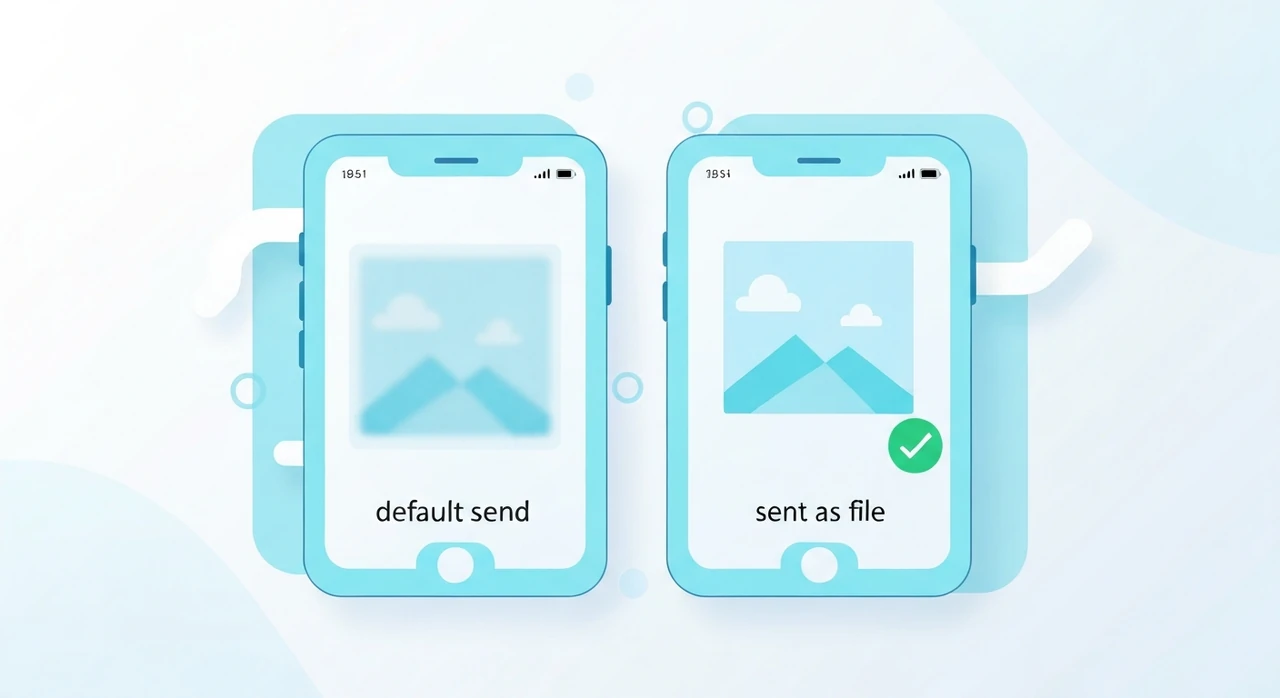
An editor I used to work with once asked me, half exasperated, why every photo she sent her sister via WhatsApp ended up looking like it had been through a fax machine. She’d taken the photo on a recent iPhone, in good light, and by the time her sister opened it on an Android phone across the world, it looked like a scan from 1998.
The short answer: every major messaging app and every major email provider re-encodes photos on send. Often aggressively. That’s what happened to her photo, and it’s what’s happening to yours.
The longer answer is this article.
What’s actually happening to your photos
When you attach a photo in WhatsApp, iMessage to a non-iMessage user, Messenger, Instagram DM, or an email client, the app typically does some combination of:
- Resize to a maximum dimension. Often 1600 or 2048 pixels.
- Re-encode as JPEG at a relatively aggressive quality (60–75 is common).
- Strip EXIF metadata.
The result is a smaller file that the recipient downloads quickly. But each of those steps loses information, and when the starting photo is a large high-quality iPhone or Android image, the drop is visible.
Apps that compress the most in my testing: WhatsApp, Instagram DM, Facebook Messenger, generic SMS / MMS. Apps that compress least or not at all: Signal (very light), Telegram (optional), AirDrop (zero), and any file attached as a “document.”
The workaround, by channel
Two options that work. Neither requires a paid tool.
Option 1: Document attachment. Instead of tapping the image icon, tap the paperclip and pick “Document.” The photo sends as a file at original bytes. The recipient has to tap to view it, which is one more tap than usual, but no compression.
Option 2: “HD” mode. Since late 2023, WhatsApp has had an “HD” toggle above the photo when you’re about to send. It uses a gentler compression preset. Not perfect, but noticeably better than the default.
For more detail, see our WhatsApp compression guide.
iMessage
Here’s the catch with iMessage. Between two iMessage users (blue bubbles), photos send at near-full quality. Between an iMessage user and a non-iMessage user (green bubbles in iOS), the photo falls back to SMS / MMS and gets crushed into oblivion.
Workaround: AirDrop if both sides are Apple. Email or a shared iCloud link otherwise.
Email clients vary, but most of them respect what you attach. No compression happens at the client. Your limit is the provider’s attachment cap: 25 MB for Gmail, 20 MB for Outlook, 20 MB for most corporate accounts.
For photos that fit under the cap, just attach them. For photos or batches that exceed it, use a share link:
- iCloud Mail Drop (up to 5 GB).
- Gmail’s Google Drive fallback for files over 25 MB.
- WeTransfer, Smash, or Dropbox for cross-platform.
See our email attachment guide for the details.
Instagram and Facebook DMs
These compress heavily, and unlike WhatsApp there’s no HD toggle or document attachment workaround. If you need quality to survive, don’t use DMs. Send via email or a file-sharing link instead.
Telegram and Signal
Telegram gives you a choice on send: “Send as photo” (compresses) or “Send as file” (original bytes). Signal is usually gentler than WhatsApp by default but also has a document option.
AirDrop
The gold standard for device-to-device photo sharing in the Apple world. No re-encoding, no compression, no resize. If both sides are Apple, use AirDrop.
Cross-platform: file-sharing links
For anything where you genuinely need the original bytes, skip messaging. Upload the file to a cloud service and send the link:
- Google Drive, Dropbox, OneDrive — all preserve originals.
- WeTransfer and Smash — no account needed on the recipient side.
- iCloud Drive share links — works from any Apple device.
The recipient gets a download that’s bit-for-bit what you uploaded.
“But I just want the other person to see it nicely”
If you’re OK with the photo being displayed at phone-size quality and you just want it to not look awful, pre-compressing the photo before you send gives better results than letting the messaging app do it.
This sounds counterintuitive. “You want me to compress it before the app compresses it?” Yes, actually.
Here’s why. Messaging apps’ default compression is tuned for their median user — someone sending a photo of dinner at medium quality. When you feed that encoder a 12 MP iPhone photo straight out of the camera, the encoder takes aggressive shortcuts that wouldn’t be needed on a smaller, cleaner input.
If you pre-resize to 1600 px wide and pre-compress at quality 85 (using our JPG compressor, for example), then send, the app’s re-encoding has much less work to do. The final quality after the messaging app’s second compression ends up higher than if you’d sent the 12 MP original.
I’ve done this informally with my own photos and side-by-side the difference is visible at 100% zoom on phone screens. Not huge, but clearly better.
Photos vs documents
One subtle point worth naming. Many apps (WhatsApp, Telegram, Signal, Slack, Discord) give you a choice: send as photo, or send as file/document. The “photo” path always goes through the app’s compression. The “file” path doesn’t.
If quality matters, send as file. The recipient sees a file attachment with a thumbnail instead of an inline photo, but they can tap and see the full image. Small UX penalty, huge quality benefit.
iPhone specifics worth knowing
iPhone photos are HEIC by default since 2017. HEIC is great for storage but has two compatibility issues worth knowing about:
- Many non-Apple recipients can’t open HEIC without extra software.
- Some apps convert HEIC to JPEG on send, which is an extra lossy step.
If you share a lot of photos outside the Apple ecosystem, consider switching your camera to “Most
Compatible” (JPG) in
Settings → Camera → Formats. Your photos save at roughly double the file size but skip the
HEIC-to-JPEG conversion that happens on send.
For the full rundown, see our HEIC vs JPG guide.
A practical decision tree
When a friend asks me how to send a photo:
- Both of us are on iPhones in the same room → AirDrop.
- Both of us are on iPhones across the world → iMessage (blue bubble).
- One of us is on Android → WhatsApp “Send as document” or an iCloud / Google Drive link.
- For a work colleague → email with the original attached.
- For a designer reviewing for print → share link to Dropbox or Google Drive, never a messaging app.
That covers 95% of cases.
What I tell people who ask
If you’ve been frustrated with blurry photos on WhatsApp or iMessage for years and didn’t know what was happening: you weren’t doing anything wrong. The apps are compressing your photos behind your back. The workaround is one of two things: pre-compress to give them cleaner input, or send as a file/link to skip the compression entirely.
Pick your workflow from the decision tree above. Save yourself the frustration. And let your friends keep thinking you have a nicer camera than you actually do.
Try our free image tools
Compress and convert images right in your browser. No upload, no signup, no limits.